Attachments
Once you have a Filing instance you can access the attachments for the filing using the attachments property.
filing.attachments
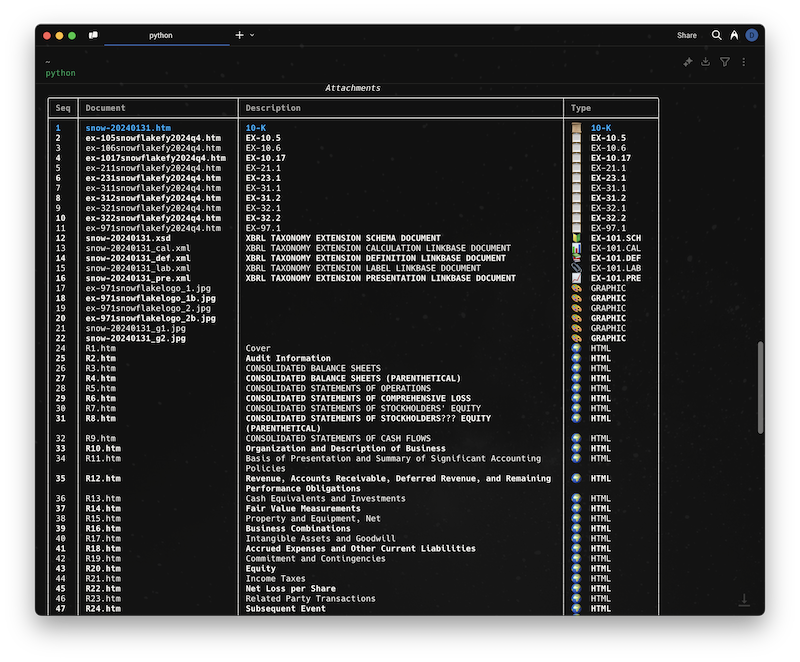
Auto-Parsed Exhibits
Some exhibit types are automatically parsed when accessed through a data object:
- EX-21 (Subsidiaries):
tenk.subsidiariesreturns aSubsidiaryListwith name, jurisdiction, and ownership percentage for each subsidiary.
Get an attachment by index
You can get an attachment by index using the [] operator and using the Seq number of the attachment.
The primary filing document is always at index 1, and is usually HTML or XML.
attachment = filing.attachments[1]
attachment
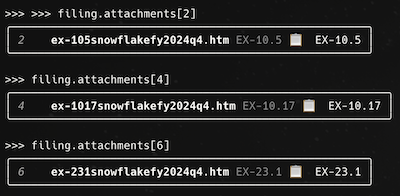
Viewing an attachment
You can view the attachment in a browser using the view() method. This works if the attachment is a text or html file.
attachment.view()
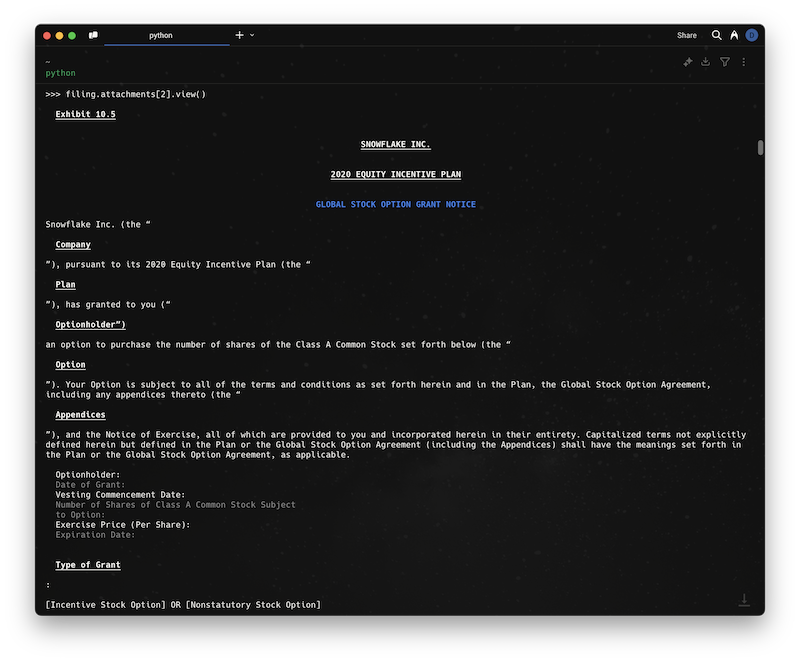
This extracts the text of the attachment and renders it in the console. If you need to get the text use the text() method.
Getting the text content of an attachment
You can get the text content of an attachment using the text() function.
text = attachment.text()
print(text)
This will print the text content of the attachment.
Converting HTML attachments to markdown
You can convert HTML attachments to markdown format using the markdown() method.
# Convert a single HTML attachment to markdown
attachment = filing.attachments[1]  # Get the primary document
if attachment.is_html():
    markdown_content = attachment.markdown()
    print(markdown_content)
The markdown() method returns None for non-HTML attachments, so you can safely call it on any attachment.
Page Break Delimiter Support
The markdown() method supports optional page break delimiters to help you understand document structure:
# Convert with page break delimiters
attachment = filing.attachments[1]
markdown_with_breaks = attachment.markdown(include_page_breaks=True)

# Page breaks appear as: {1}------------------------------------------------
# Where the number indicates the page number
When include_page_breaks=True, the markdown will include delimiters at page boundaries in the format:
- {0}------------------------------------------------ at the start of the document
- {1}------------------------------------------------ before the second page content
- {2}------------------------------------------------ before the third page content
- And so on...
Customizing Page Numbering
You can control the starting page number for page break markers using the start_page_number parameter:
# Start page numbering at 1 (instead of 0)
attachment = filing.attachments[1]
markdown_with_breaks = attachment.markdown(include_page_breaks=True, start_page_number=1)

# This will produce: {1}------------------------------------------------, {2}------------------------------------------------, etc.

# Start page numbering at 5
markdown_with_breaks = attachment.markdown(include_page_breaks=True, start_page_number=5)

# This will produce: {5}------------------------------------------------, {6}------------------------------------------------, etc.
This is particularly useful when you want to align page numbers with external document numbering or when processing documents that are part of a larger collection.
Batch markdown conversion
You can convert all HTML attachments in a filing to markdown at once:
# Convert all HTML attachments (without page breaks)
markdown_dict = filing.attachments.markdown()

# Convert all HTML attachments with page breaks
markdown_dict = filing.attachments.markdown(include_page_breaks=True)

# Convert all HTML attachments with page breaks starting at page 1
markdown_dict = filing.attachments.markdown(include_page_breaks=True, start_page_number=1)

# Result is a dictionary: {"filename.htm": "markdown content", ...}
for filename, content in markdown_dict.items():
    print(f"--- {filename} ---")
    print(content[:500])  # Show first 500 characters
Saving markdown content
You can save the markdown content to files:
# Save individual attachment markdown
attachment = filing.attachments[1]
markdown_content = attachment.markdown()
if markdown_content:
    with open(f"{attachment.document}.md", "w") as f:
        f.write(markdown_content)

# Save all HTML attachments as markdown files
markdown_dict = filing.attachments.markdown()
for doc_name, markdown_content in markdown_dict.items():
    # Remove extension and add .md
    base_name = doc_name.rsplit('.', 1)[0]
    with open(f"{base_name}.md", "w") as f:
        f.write(markdown_content)
Downloading an attachment
You can download the attachment using the download() method. This will download the attachment to the current working directory.
attachment.download('/path/to/download')
If the path is a directory the attachment will be downloaded to that directory using the original name of the file.
If the path is a file the attachment will be downloaded to that file. This allows you to rename the attachment.
If you don't provide a path the content of the attachment will be returned as a string.